Your First Session with Betty
Learn how to launch Producer Betty, run your first Deep Scan, and understand how Project Memory keeps your sessions organized.
Watch: Producer Betty Chat Panel overview
1Download from the App Store
Producer Betty is available on the Mac App Store. Here's how to get it:
- Open the Mac App Store
- Search for Producer Betty
- Click Get to download and install
2Launch Logic Pro First
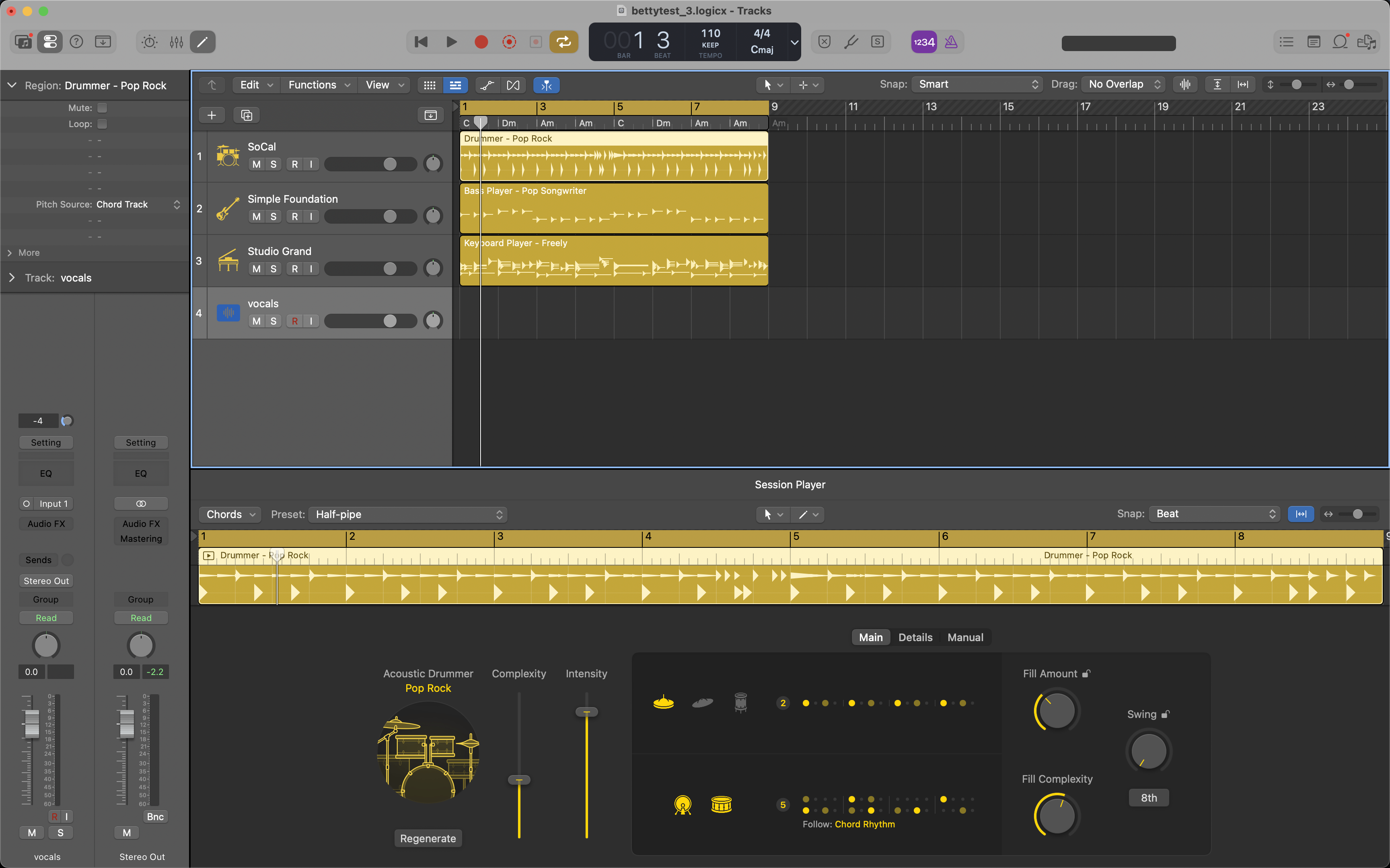
Open your Logic Pro project before launching Producer Betty. This ensures Betty can detect your session immediately and start building context.
💡 Tip: Close any Logic Pro projects you're not actively working on to prevent session crossover.
3Launch Producer Betty & Grant Permissions
Watch: Keep Window On Top & Tooltip toggles
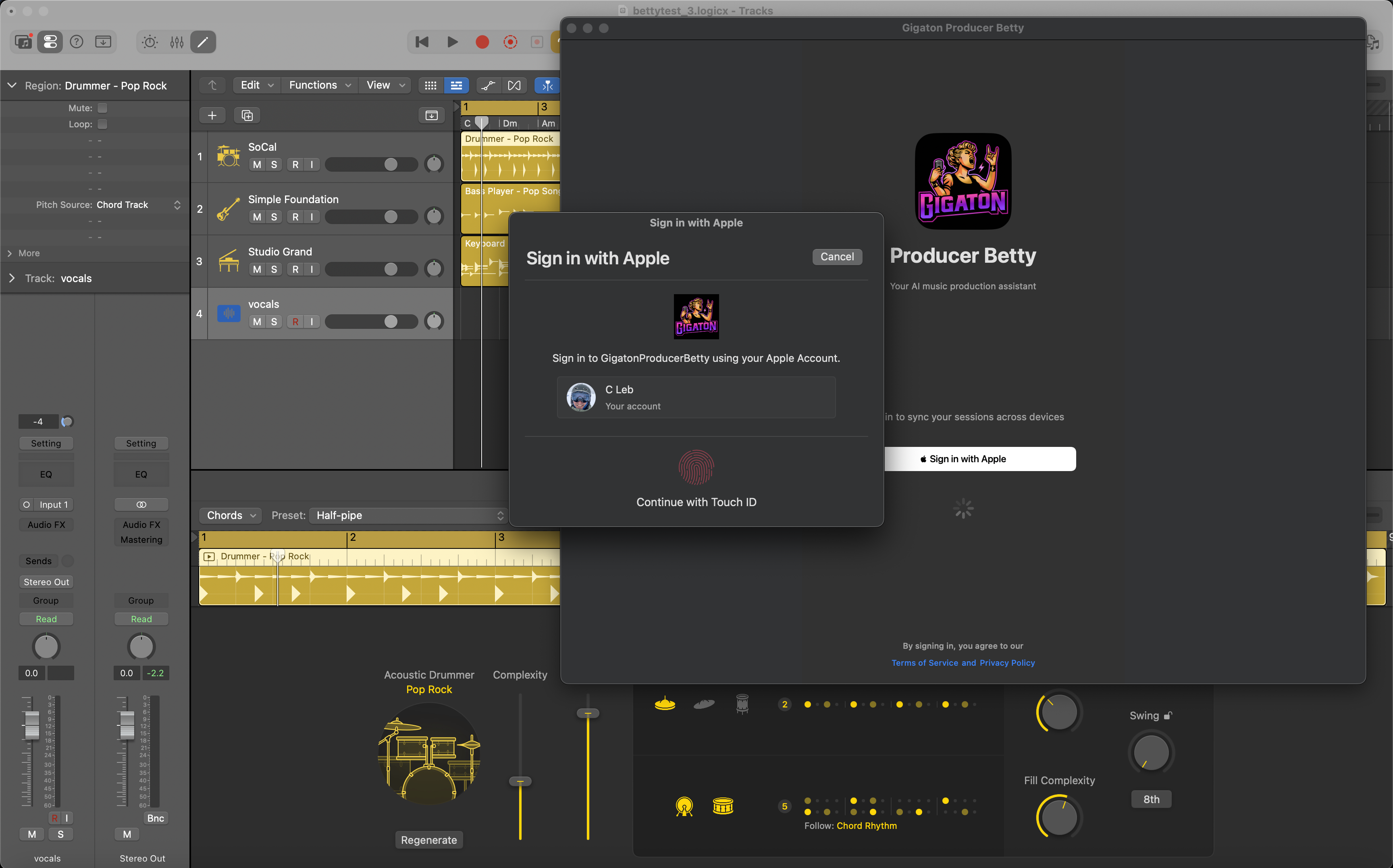
Open Producer Betty from your Applications folder or Dock. Sign in with your Apple ID if prompted. On first launch, Betty will ask for permissions to work with Logic Pro.
Permissions Required: Betty needs Screen Recording and Microphone permissions. When you see a prompt like the one below, click Open System Settings to grant access.
⚠️ Important: After granting Screen Recording permission, quit and relaunch Producer Betty (⌘Q). This is required by macOS—without a restart, Betty cannot detect your project name and will show "Untitled Project".
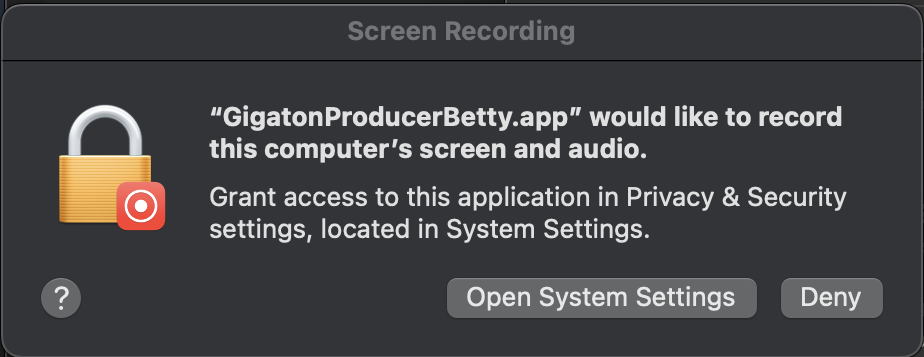
For detailed instructions on each permission, see the Permissions Setup Guide.
Watch: Betty's Voice Input Controls and Panel
4Quick Setup for New Projects
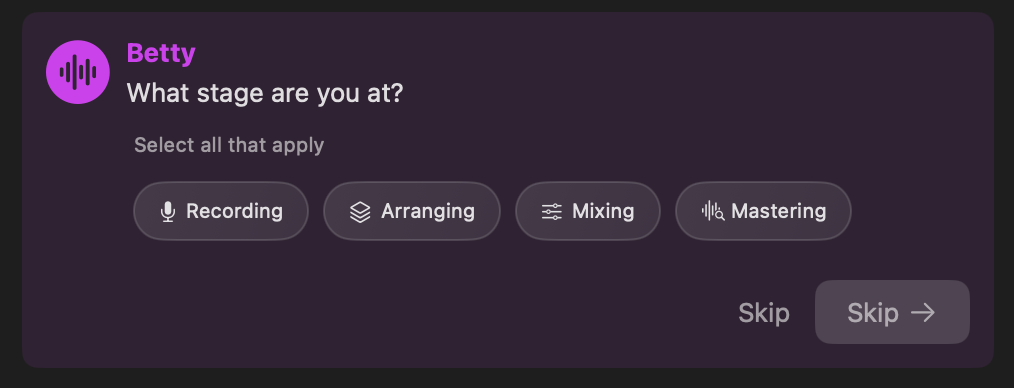
When you open a new session—or one Betty hasn't seen before—she'll ask a few quick questions to understand your project. This only takes a few seconds, and you can skip through it anytime.
Betty will ask about:
- •Genre — Pop, Hip-Hop, Rock, Electronic, and more
- •Stage — Recording, Arranging, Mixing, or Mastering
- •Reference tracks — Songs you're drawing inspiration from
- •Goals — What you want to accomplish this session
Just tap the chips that apply—no typing required. Select multiple options if they fit. This helps Betty give you more relevant advice from the start.
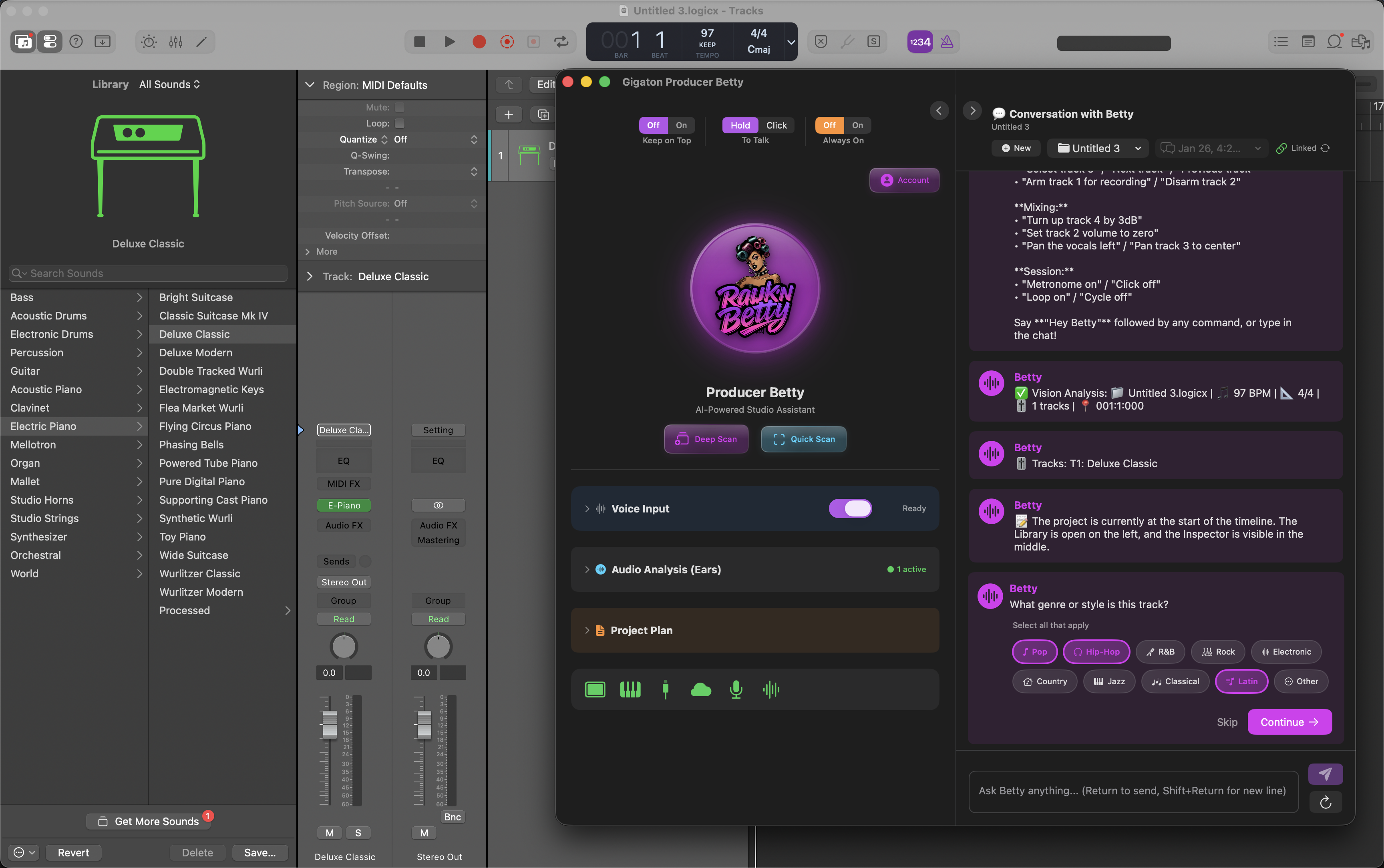
💡 Tip: You can click Skip at any step if you want to jump straight into chatting. Betty will still work great—she'll just learn your preferences as you go.
5Talking to Betty
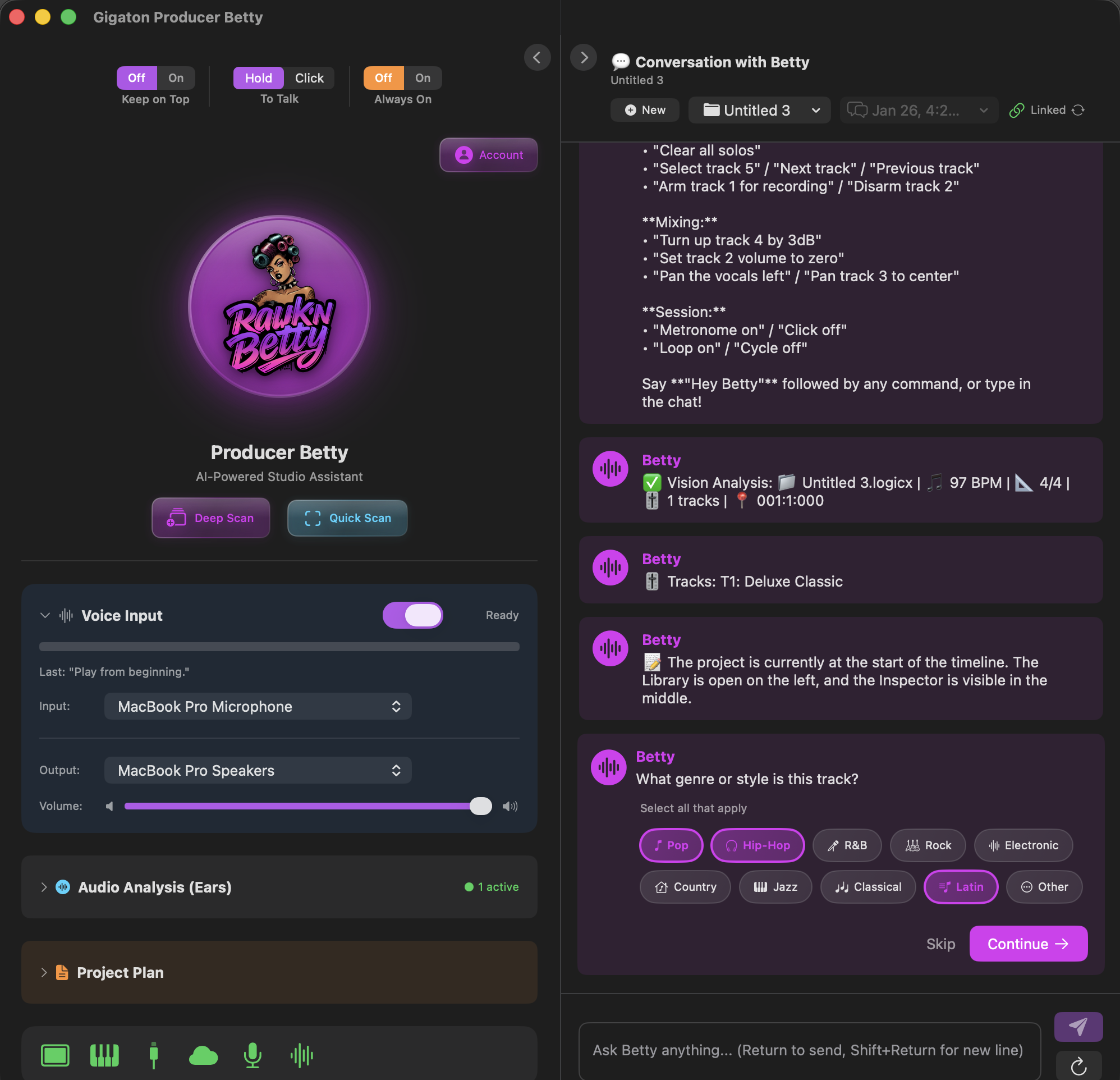
There are three ways to communicate with Betty: typing, hold-to-talk, and Always On mode.
💬 Text Input
Type your message in the chat panel and press Enter or click Send. Great for detailed questions or when you need precision.
🎤 Hold to Talk
Click and hold the microphone button to speak. Release when you're done—Betty will transcribe and respond.
💡 Tip: You can also click once to start recording, then click again to stop. Useful when you have longer thoughts to share.
🔥 Always On Mode
Toggle Always On to enable hands-free voice control. Betty listens for the wake phrase "Hey Betty" and responds to your commands without needing to touch anything.
Perfect for: When you're tracking, playing an instrument, or just want to keep your hands on the gear instead of the mouse.
🗣️ Voice Commands Betty Understands
In Always On mode (or any voice input), Betty can execute these commands directly:
🎚️ Transport & Playback
- • "Play" / "Stop"
- • "Record" / "Stop recording"
- • "Rewind" / "Fast forward"
- • "Toggle cycle" / "Loop on" / "Loop off"
- • "Metronome on" / "Metronome off"
🎛️ Track Control
- • "Mute track 3" / "Unmute vocals"
- • "Solo the drums" / "Unsolo bass"
- • "Select track 5"
- • "Next track" / "Previous track"
- • "Clear all solos"
🔊 Levels & Pan
- • "Set track 2 to -6dB"
- • "Turn up the vocals 3dB"
- • "Pan guitar left" / "Pan keys right"
- • "Center the bass"
🎬 Recording
- • "Arm track 1" / "Disarm track 1"
- • "Arm the vocals for recording"
💬 Conversational Questions
Beyond commands, ask Betty anything about production:
- •"What's the best EQ approach for my vocals?"
- •"Help me balance the drums with the bass"
- •"How do I get that 80s snare sound?"
- •"Add task: finish vocal comping"
6Run Your First Deep Scan
Watch: Quick Scan vs Deep Scan explained
Click "Deep Scan" to have Betty analyze your entire Logic Pro session. This is the handshake that creates your project's persistent brain.
🧠 What is Project Memory?
When you run a Deep Scan, Betty captures all your track names, instruments, and session structure. This information is saved to your Project Memory—a persistent record that Betty remembers across sessions.
- •Betty knows "Track 12" is your "Lead Vocal" without you telling her every time
- •Your conversations and notes are linked to the project
- •Re-open the project next week and Betty picks up right where you left off
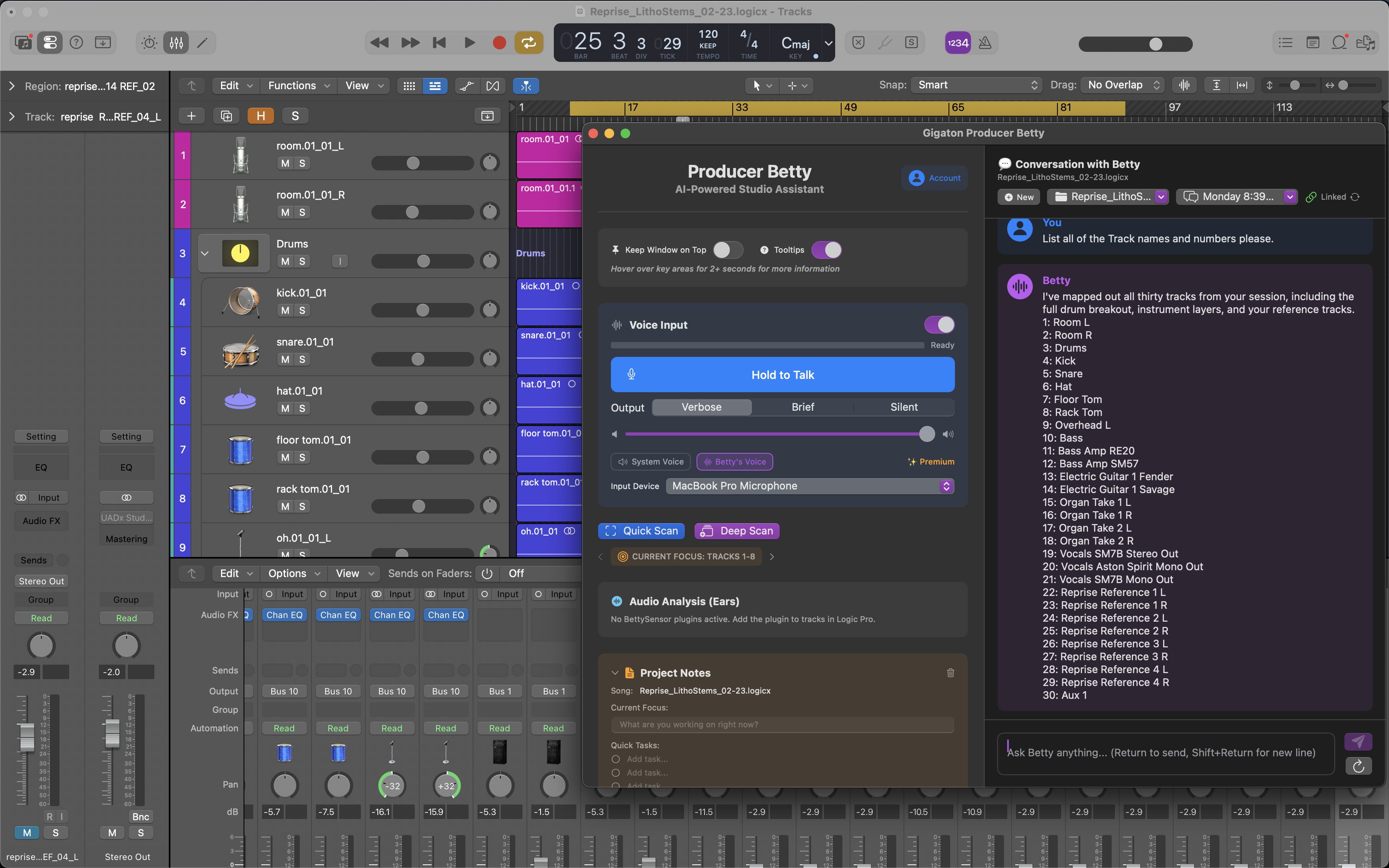
Quick Scan vs Deep Scan
Quick Scan
Fast refresh of visible tracks. Use when you've made minor changes and want Betty to catch up quickly.
⚡ Takes a few seconds
Deep Scan
Full session analysis including all tracks, even those scrolled out of view. Run this on first launch or after major session changes.
🧠 Creates Project Memory