Permissions Setup
Producer Betty requires a few macOS permissions to work with Logic Pro. Here's what each permission does and how to grant them.
First Launch
When you first launch Producer Betty, you'll see a permission alert at the top of the app. This indicates that Screen Recording permission is required before Betty can see your Logic Pro session.
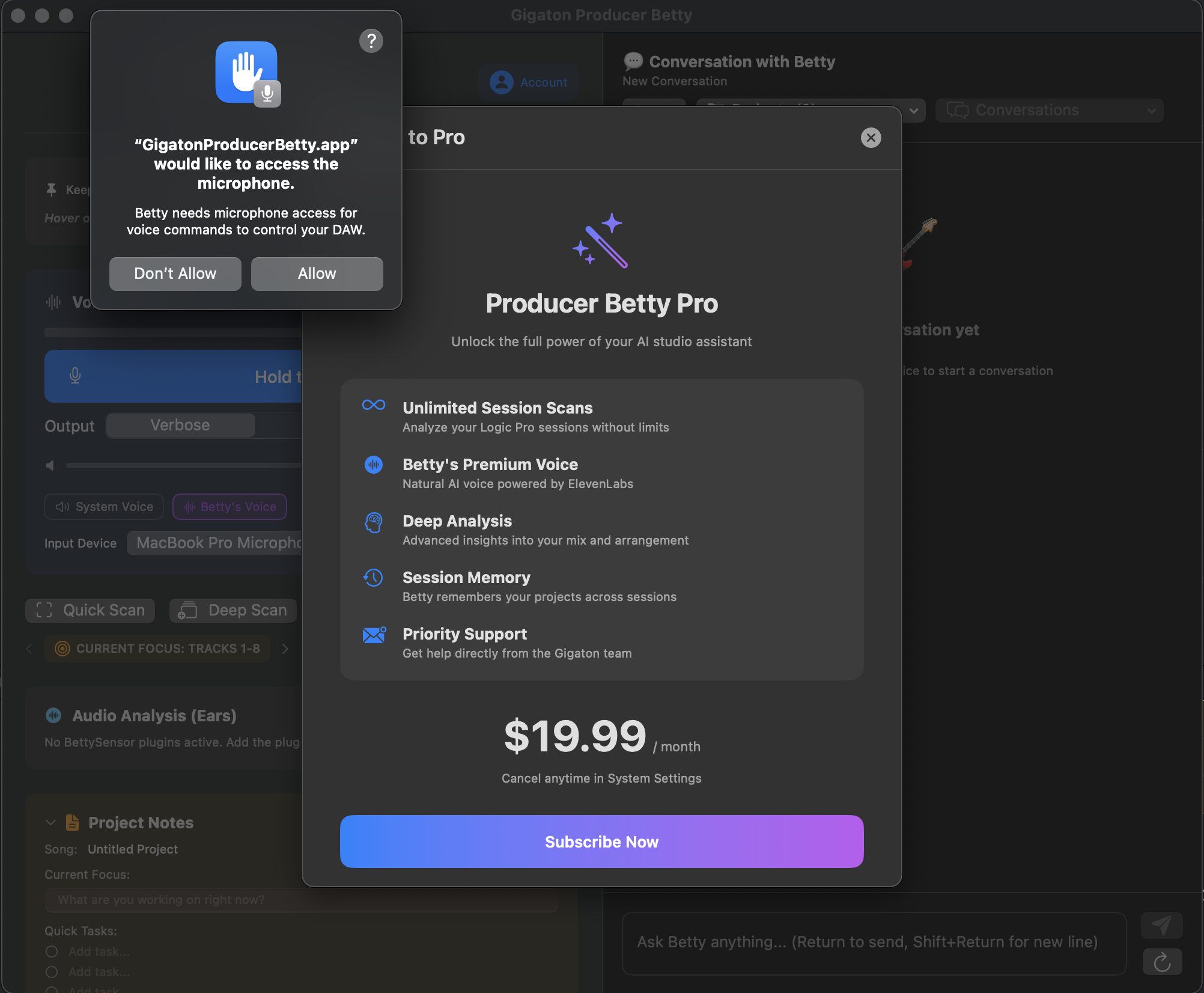
Click the Grant Permission button to begin the setup process, or use the Open Settings button to go directly to System Settings.
Why Does Betty Need Permissions?
Logic Pro doesn't have a public API for third-party apps. To provide contextual assistance, Betty needs to see what you're working on. These permissions enable Betty to:
- •Detect when Logic Pro is running and identify your project
- •See your track names, mixer layout, and session structure
- •Listen to your voice commands
Getting Started
All permissions are managed in macOS System Settings. Start by opening System Settings and navigating to Privacy & Security.
- Open System Settings
- Go to Privacy & Security
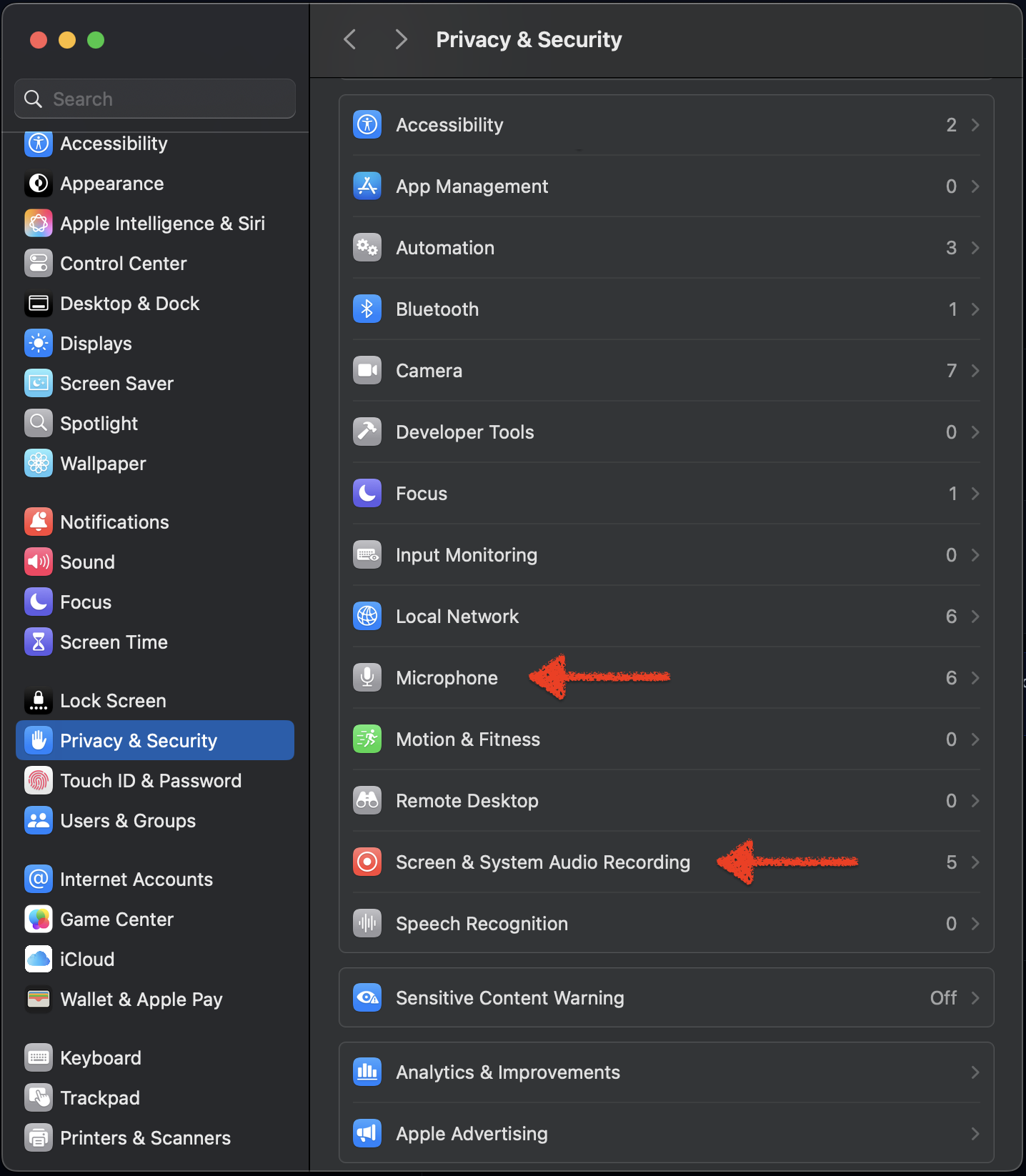
1Screen Recording
What it's used for:
- • Capturing screenshots of Logic Pro during Quick Scan and Deep Scan
- • Analyzing your mixer to identify track names, instruments, and session structure
- • Reading tempo, time signature, and playhead position
Privacy Note: Screenshots are sent to Google's Gemini AI for analysis and are not permanently stored. Only Logic Pro windows are captured—Betty does not screenshot other applications or your desktop.
How to grant:
- Go to Privacy & Security → Screen Recording
- Find Gigaton Producer Betty in the list
- Toggle the switch to enable access
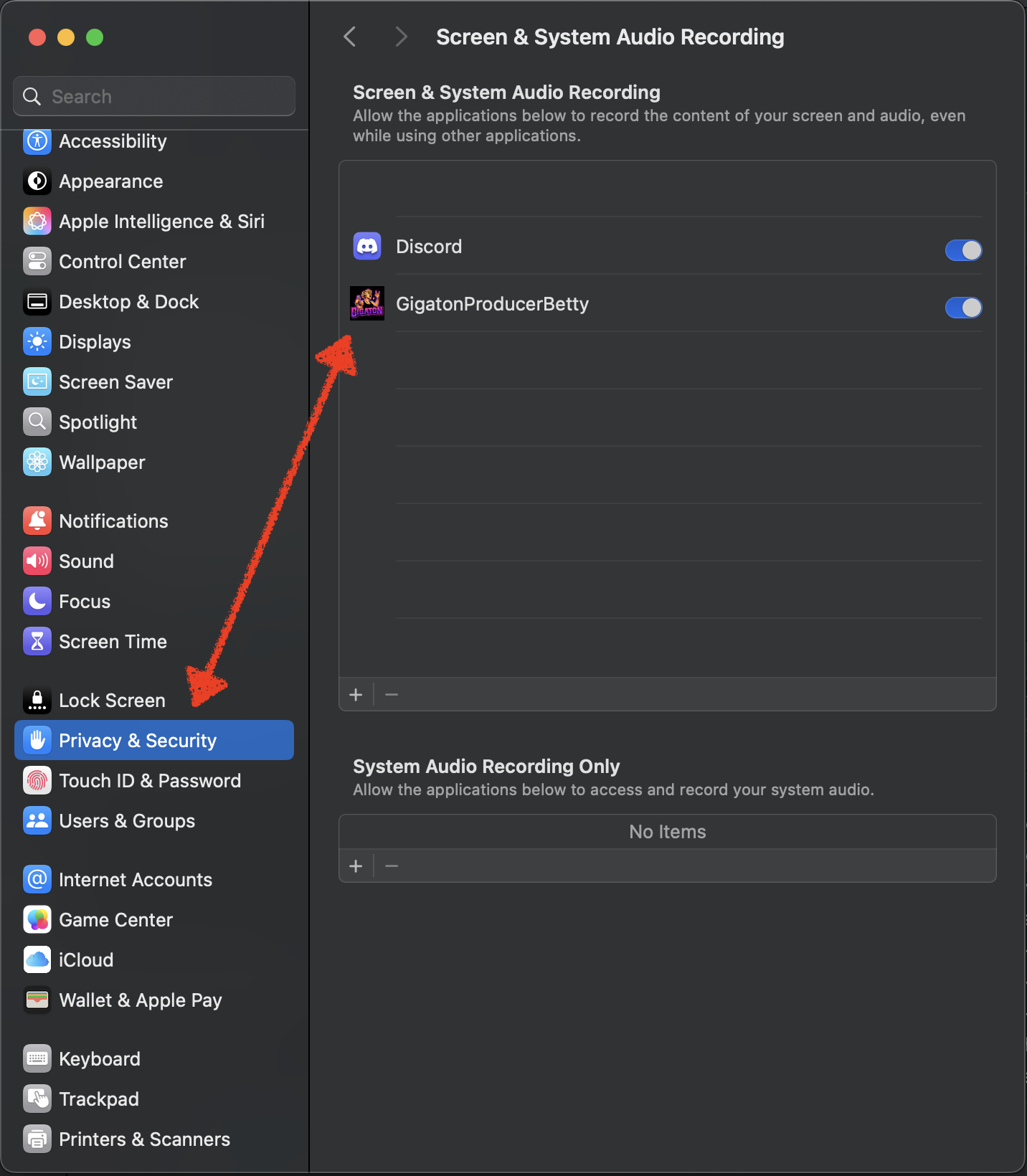
Important: Restart Required After Granting Permission
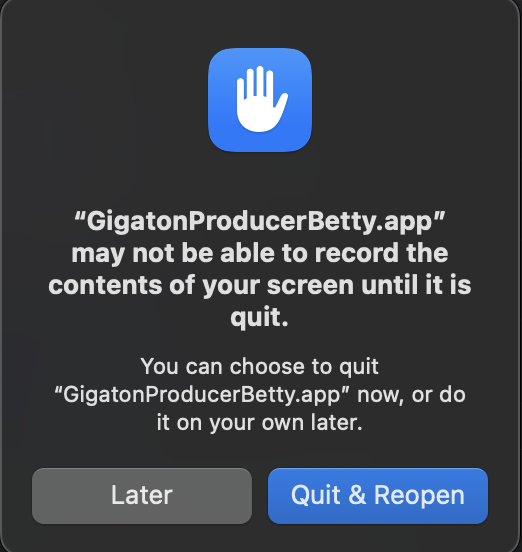
Due to a macOS limitation, you must quit and relaunch Producer Betty after granting Screen Recording permission. Without a restart, Betty cannot read Logic Pro window titles and will show "Untitled Project" instead of your actual project name.
After enabling Screen Recording:
- Quit Producer Betty completely (⌘Q)
- Relaunch Producer Betty from your Applications folder
- Betty will now correctly detect your Logic Pro project
2Microphone
What it's used for:
- • Voice commands using the "Hold to Talk" button
- • Hands-free interaction while you're mixing
Privacy Note: Audio is only captured while you hold the talk button. It's sent to Google Cloud Speech-to-Text for transcription and is not stored.
How to grant:
- Go to Privacy & Security → Microphone
- Find Gigaton Producer Betty in the list
- Toggle the switch to enable access
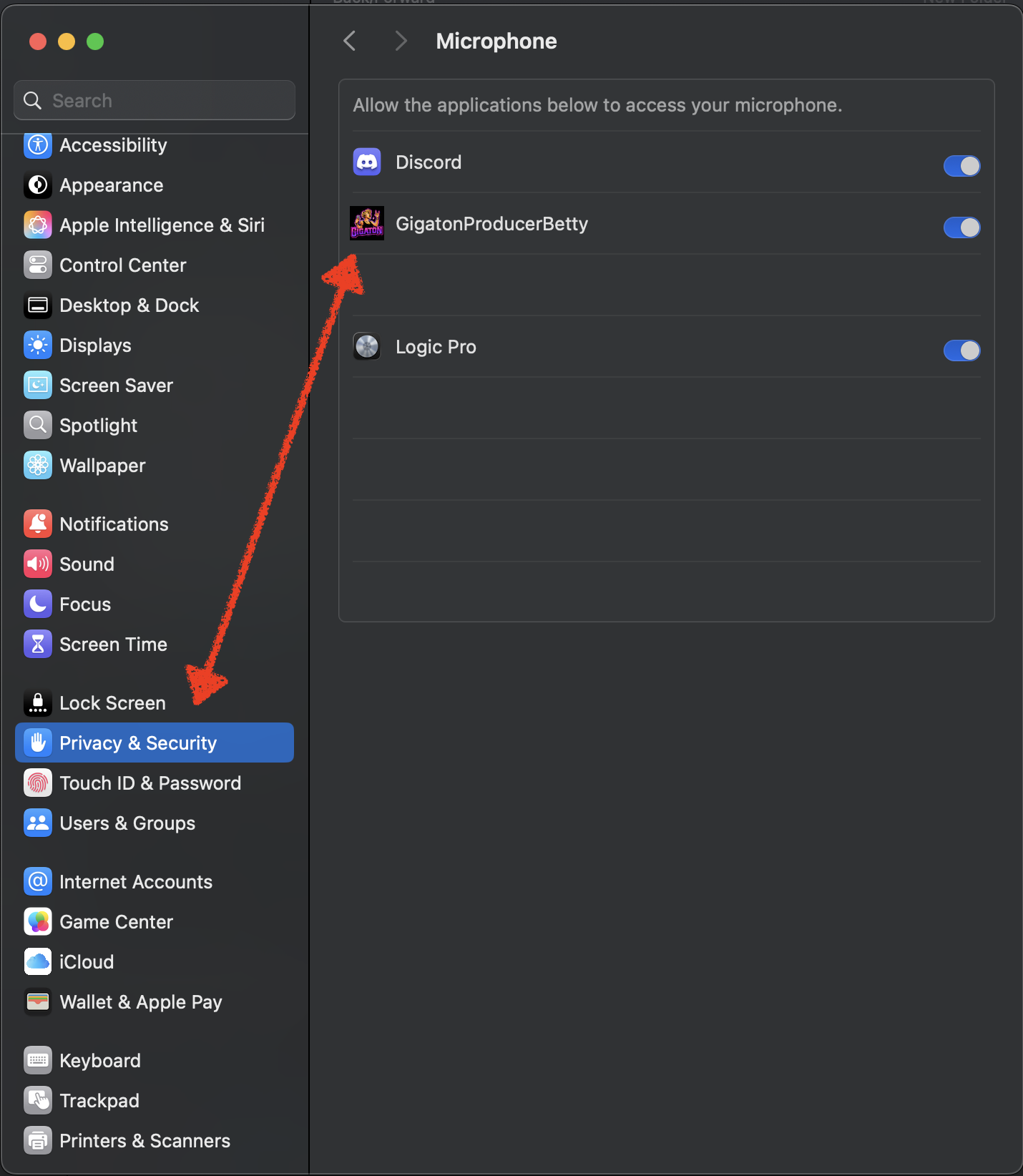
This permission is optional if you only want to use text chat.
Troubleshooting
Betty shows "Untitled Project" instead of my project name
This is the most common issue and happens when Screen Recording permission was granted while Betty was already running. macOS requires an app restart to apply this permission.
Solution:
- Quit Producer Betty completely (⌘Q)
- Relaunch Producer Betty
- Your project name should now appear correctly
Deep Scan shows no tracks
This usually means Screen Recording permission isn't granted:
- Check System Settings → Privacy & Security → Screen Recording
- Ensure Producer Betty is enabled
- Quit and restart Producer Betty after enabling
Permission granted but still not working
If Screen Recording permission appears enabled but Betty still can't detect your project, the permission entry may be stale. This can happen after app updates or reinstalls.
Solution - Reset the permission:
- Go to System Settings → Privacy & Security → Screen Recording
- Remove "Gigaton Producer Betty" from the list (click the − button)
- Open Producer Betty and click Quick Scan or Deep Scan
- Grant permission when prompted
- Click Quit & Reopen to restart the app
Voice commands not working
Check microphone permission and ensure the correct input device is selected:
- Verify Microphone permission is granted in System Settings
- In Producer Betty, check the microphone dropdown in the voice panel
- Select your preferred input device
Ready to Connect
After granting permissions and relaunching the app, you may see a system prompt asking to allow Producer Betty to connect. This is normal—click Quit & Reopen to complete the setup.
Once connected, Betty will be able to detect your Logic Pro project and provide contextual assistance.